STEP 1
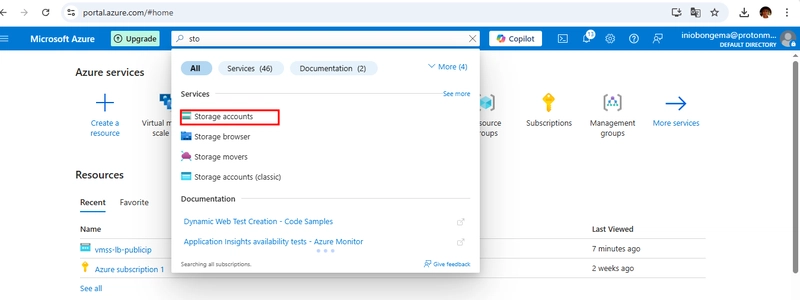
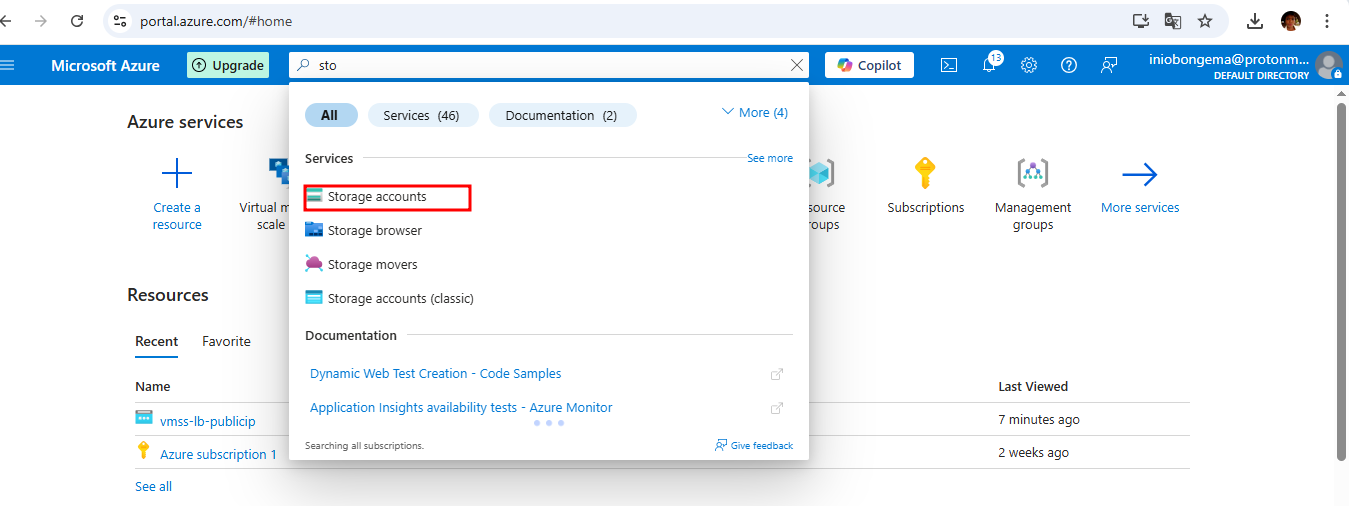
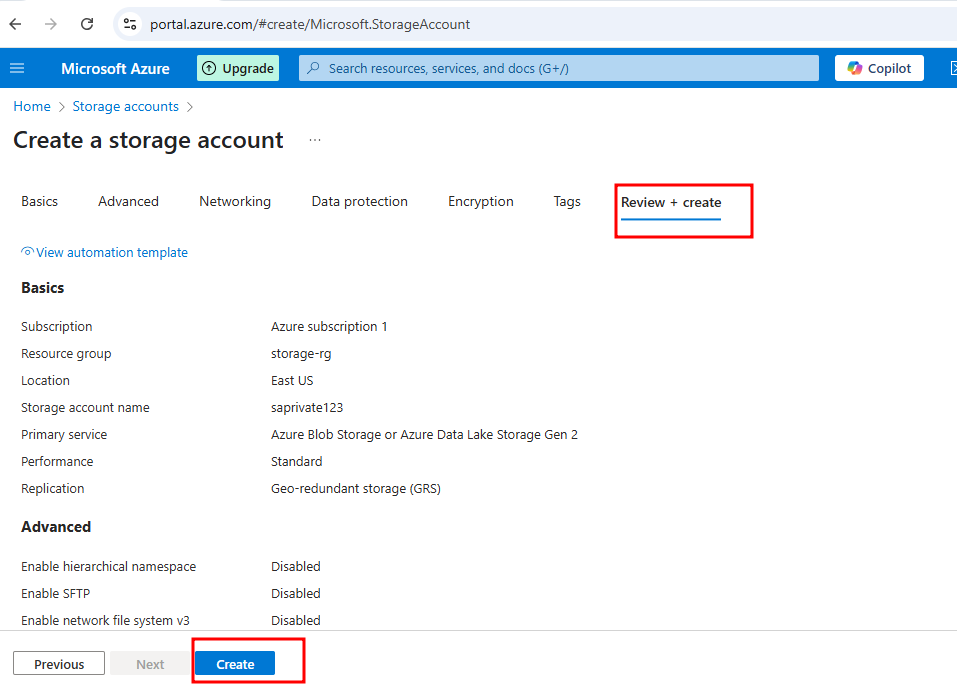
Go to azure portal and create storage account
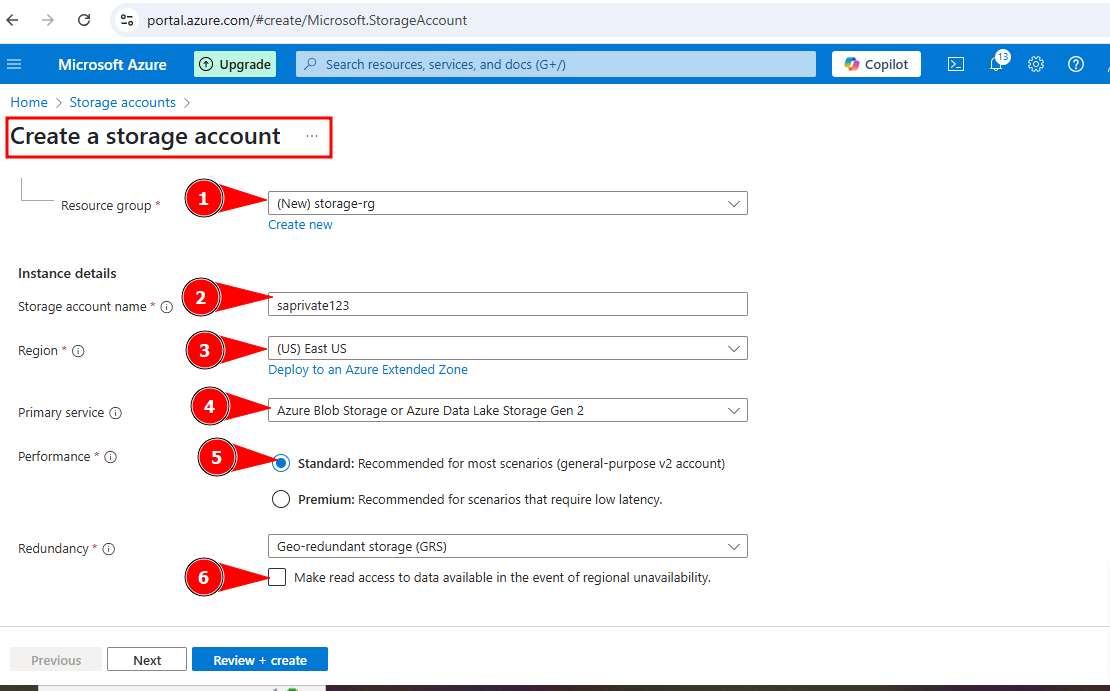
-Give the resource group a name
-Give the storage account a name
-Select region
-In primary service, select 'Azure blob storage'
-In performance select 'standard'
-Under redundancy ' untick the ticked box'
Click on 'Review and create'
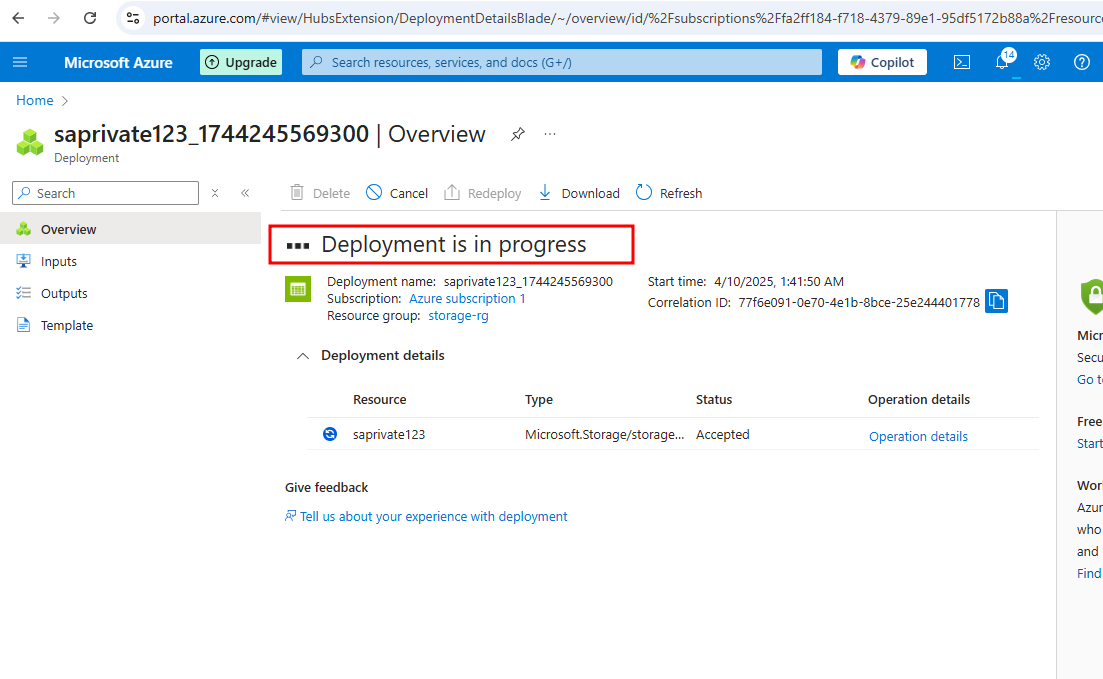
Deployment is in progress
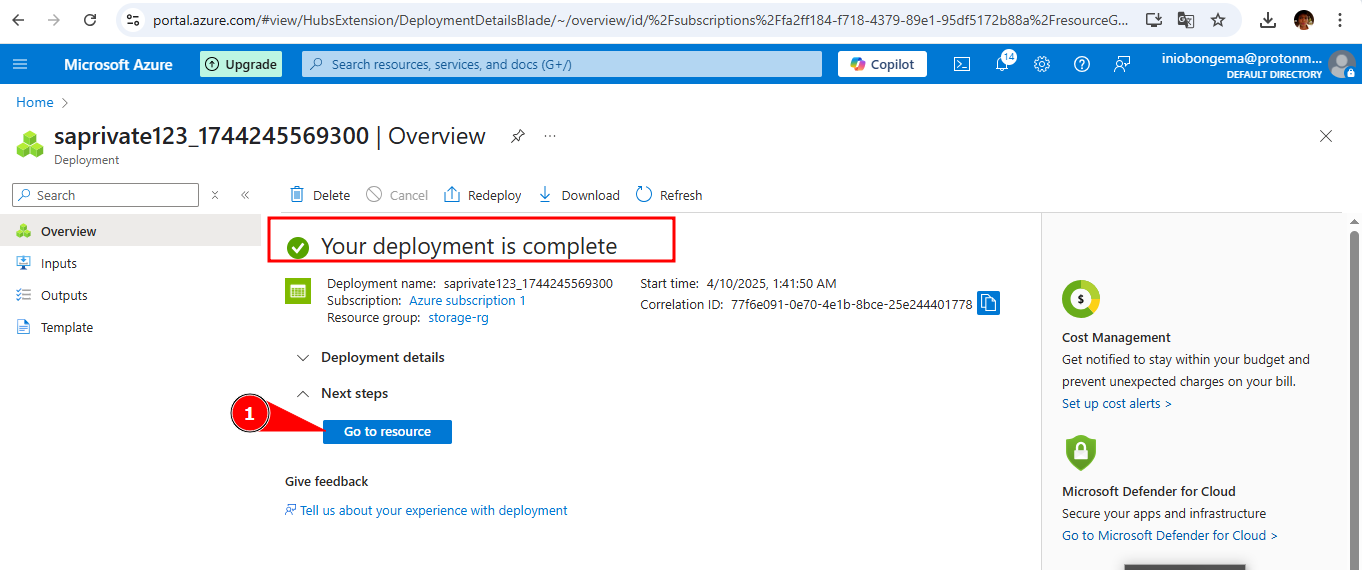
Deployment is complete, click on 'Go to resource'
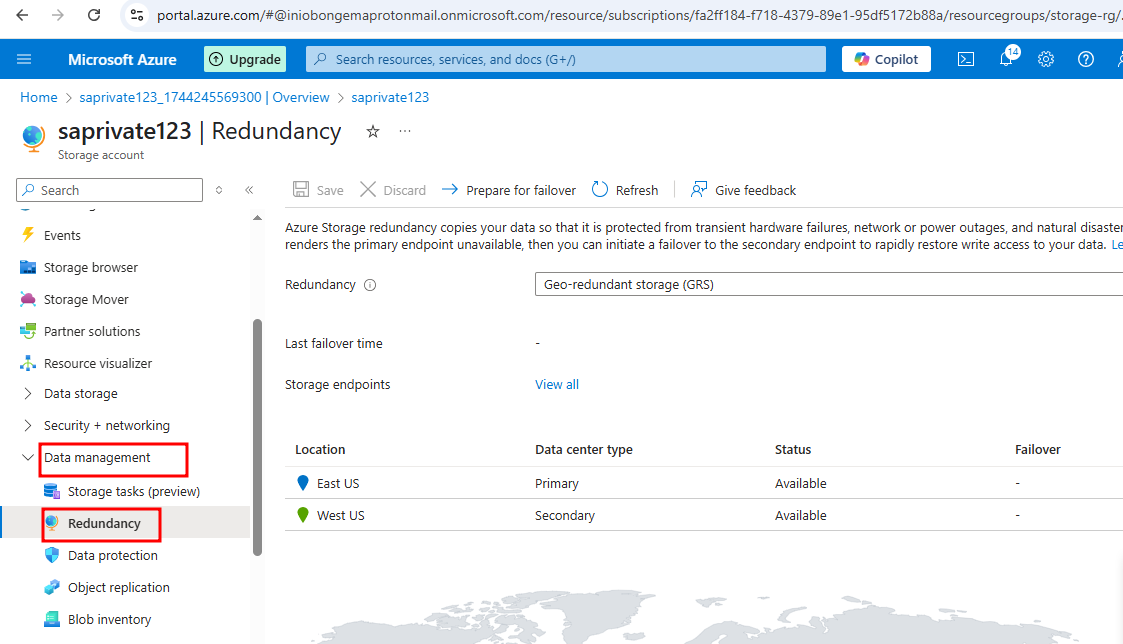
Click on 'Data management on the left pane'
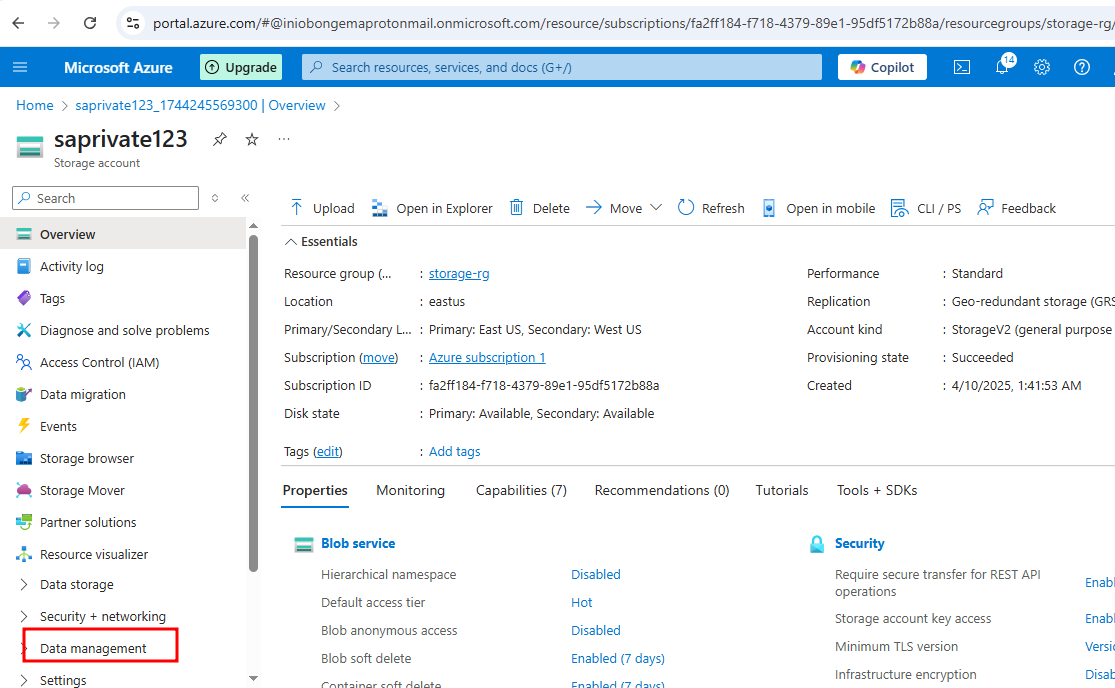
If you want to effect any corrections, it can be done here
STEP 2
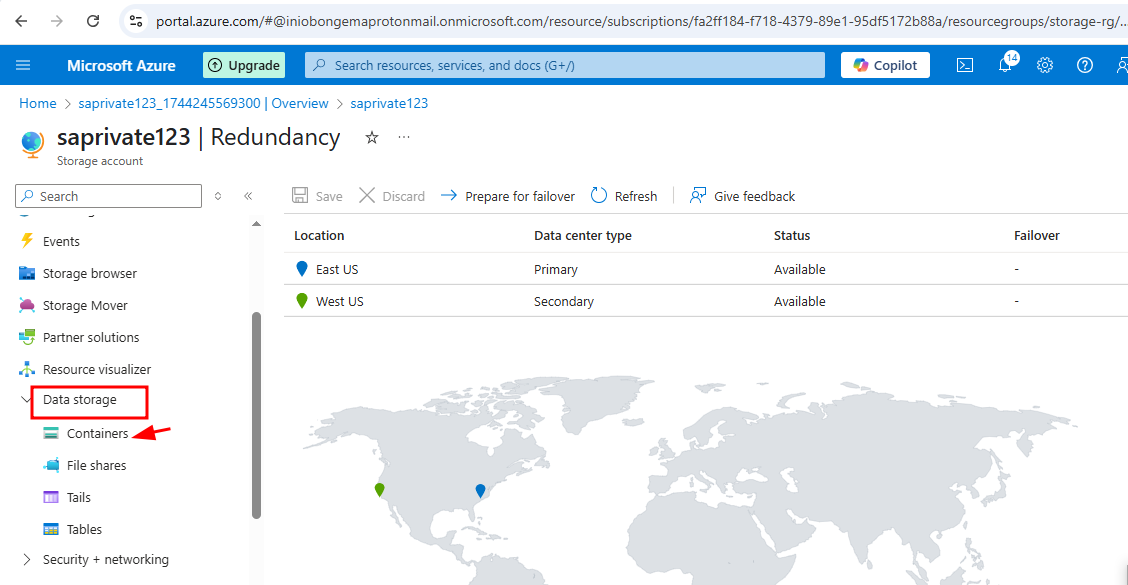
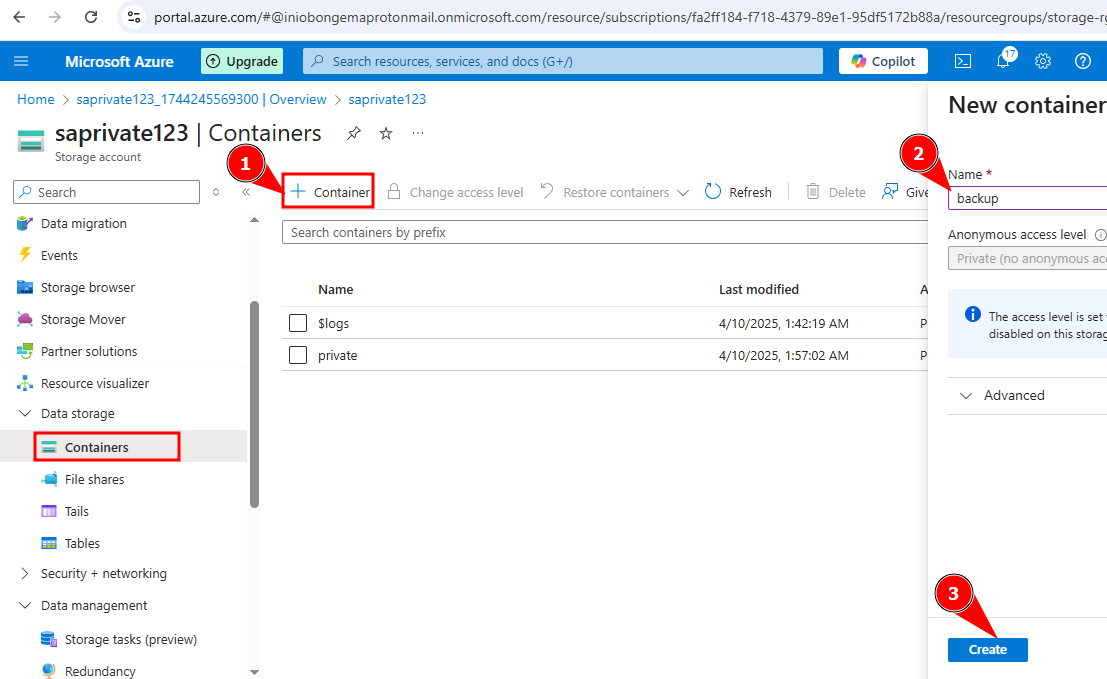
Go to 'data storage' option, then click on 'container'
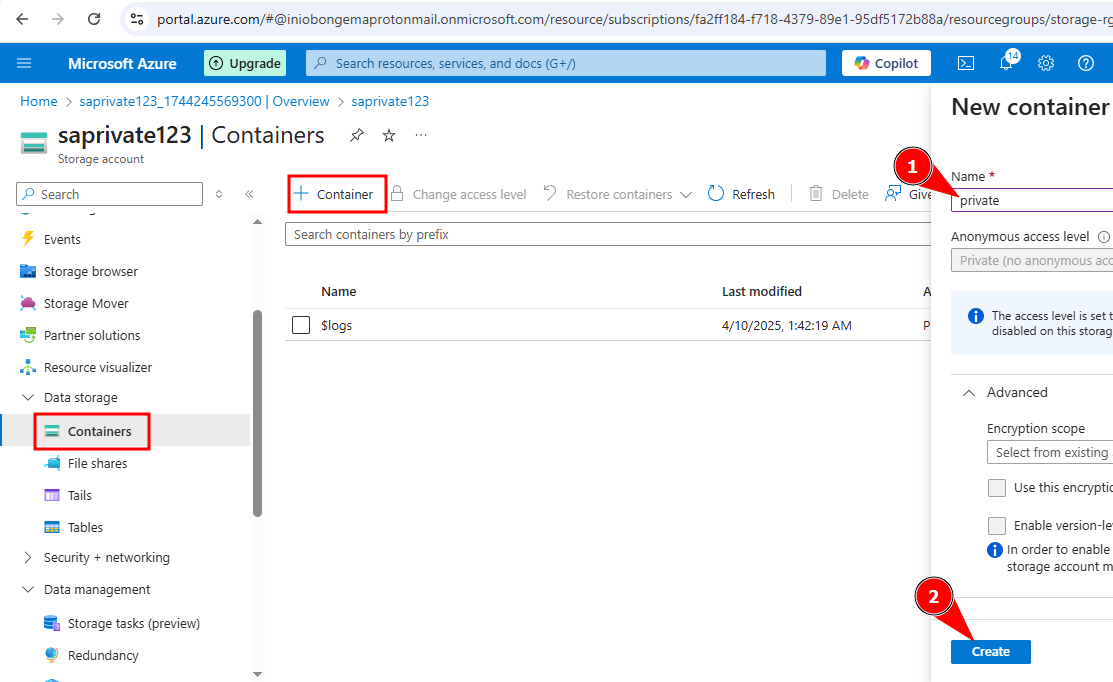
-click on 'create'
-give it a name
-click on 'create'
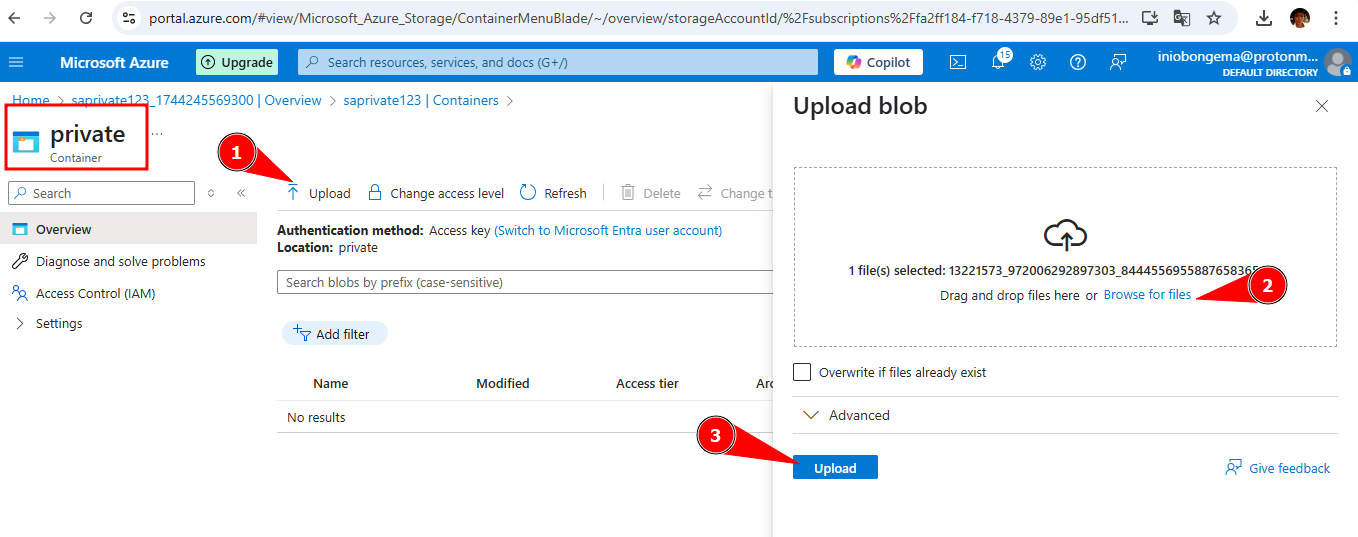
Click on the name private
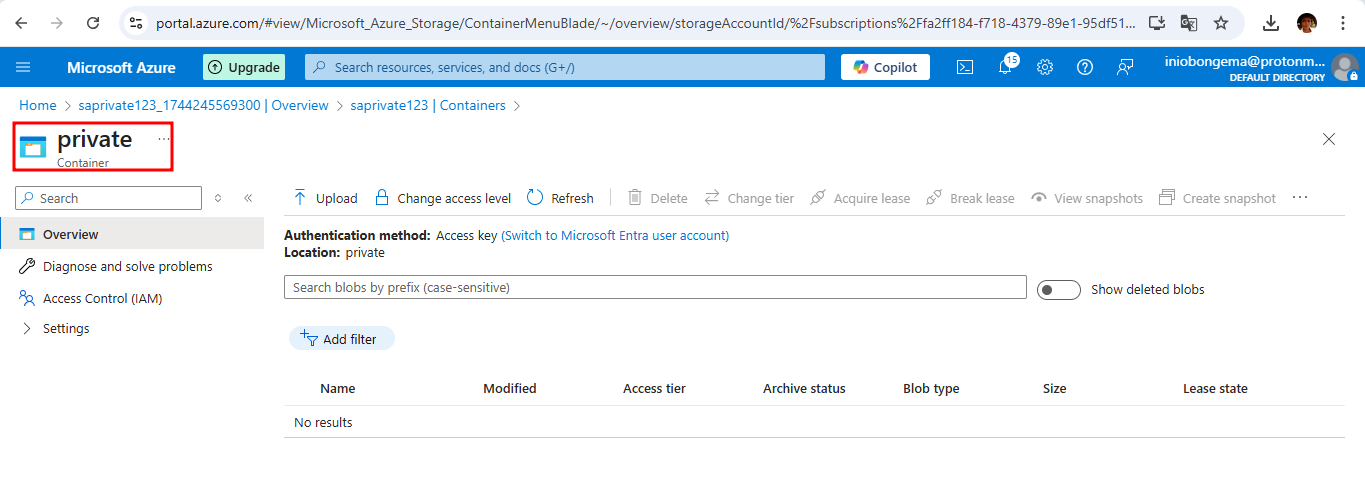
Click on 'upload'
-browse for a file to upload
-click on 'upload'
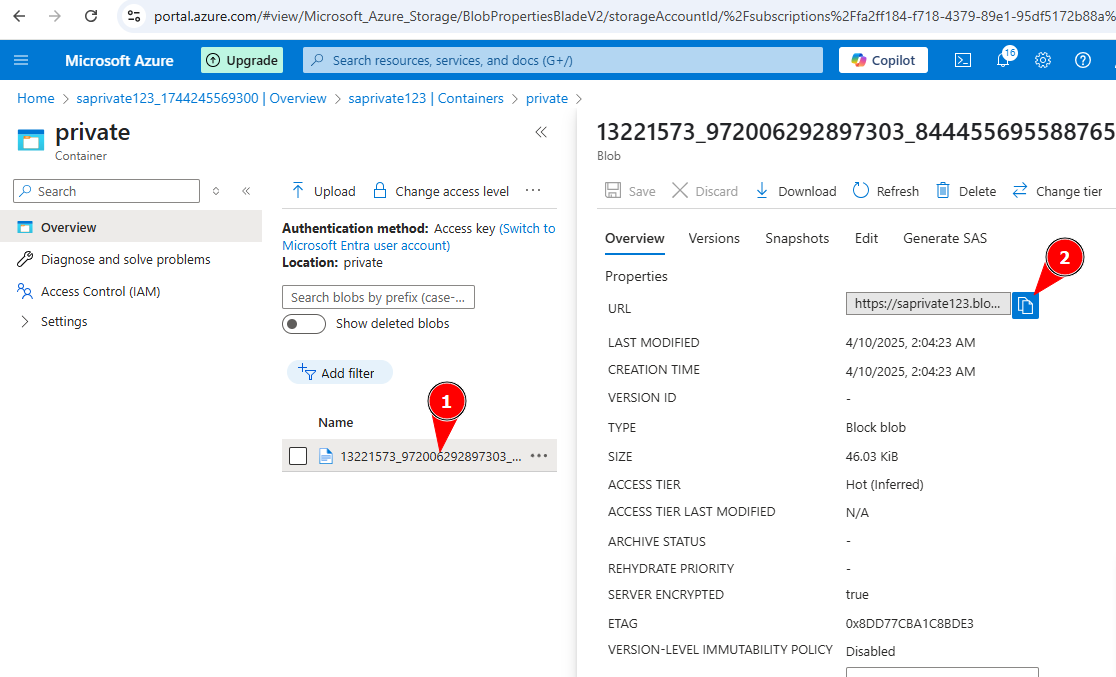
Click on the uploaded image
-copy the URL and paste on a browser
You will get an error message, indicating that it is not accessible, because it was made to be private in the settings option

If you want the content in your container to be public, you can change the private option to public.
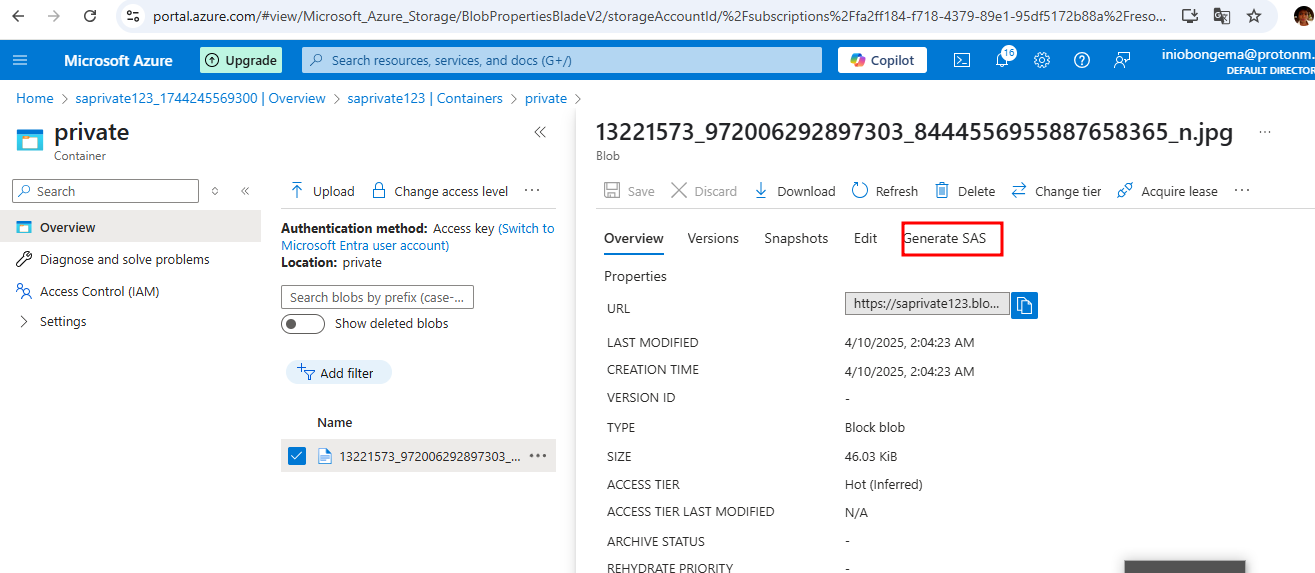
Still on overview page, click on 'generate SAS'
To give the necessary permission;
- read
- set access permission time to 24 hours
- allow HTTPS protocol
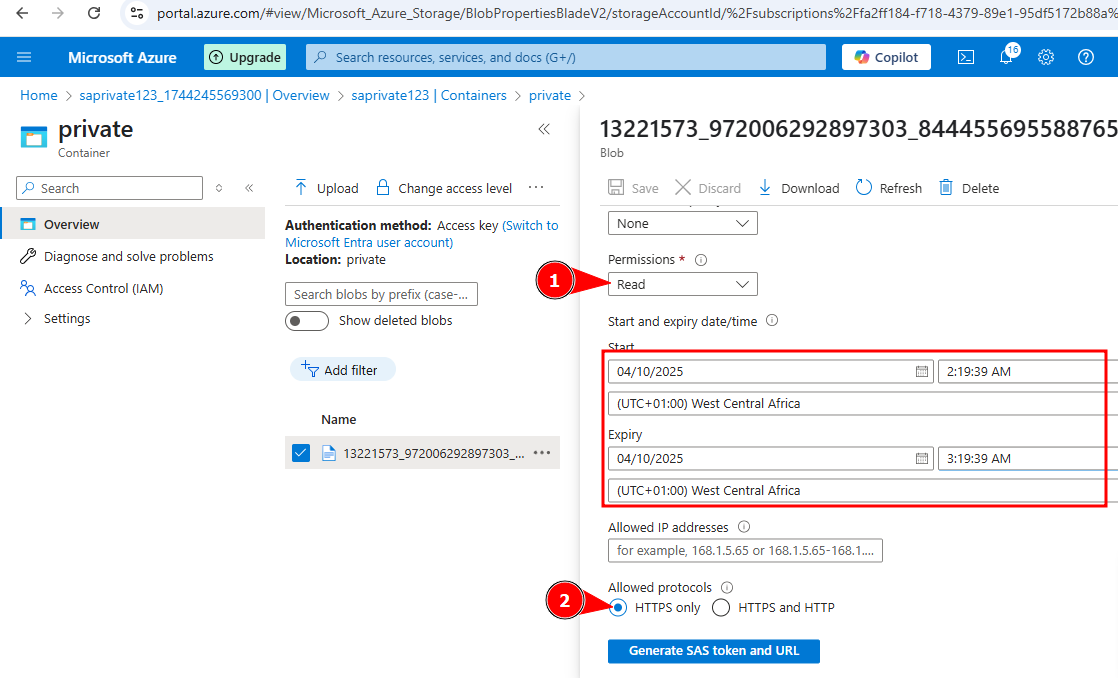
Click on 'Generate the SAS token and URL'
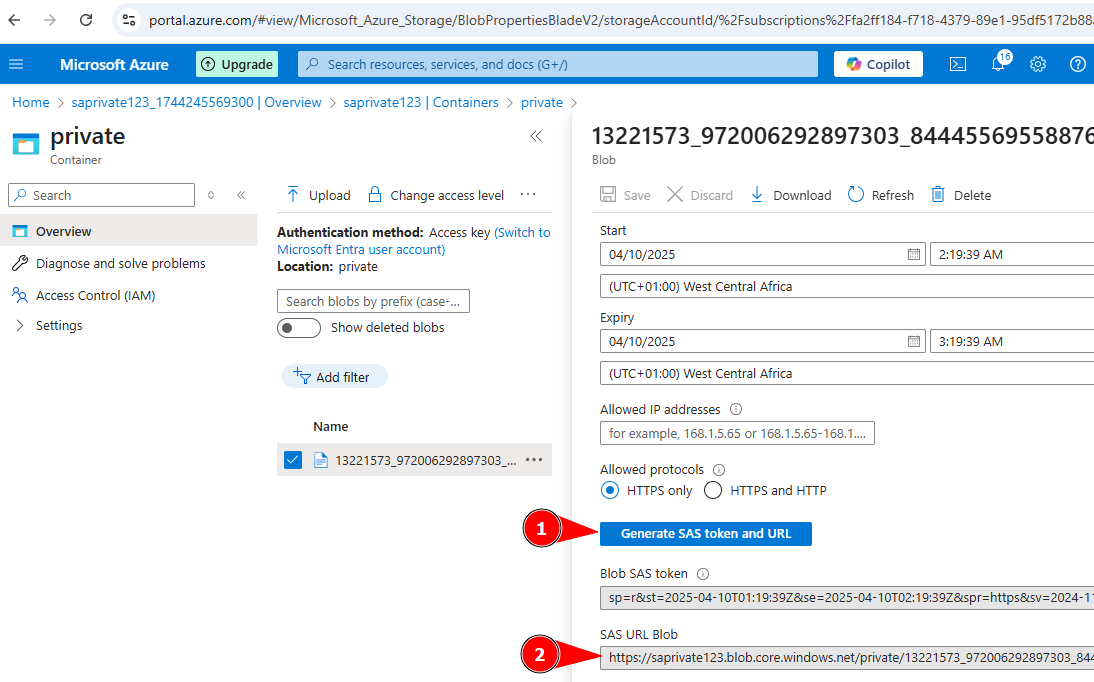
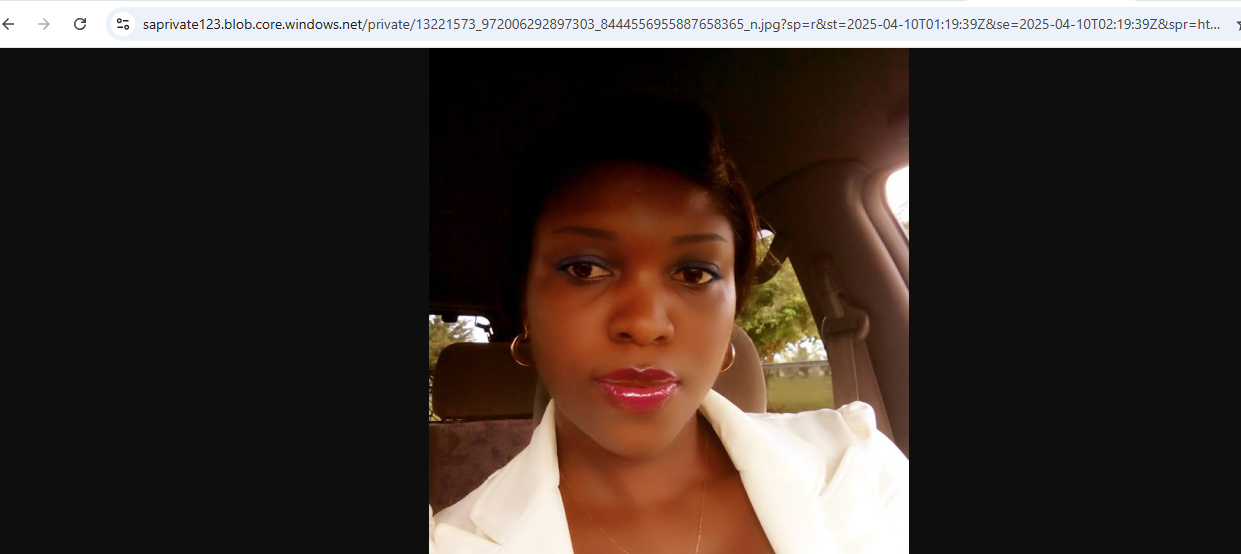
copy the 'sas url blob' in a browser
The file/image in the container is made public
STEP 3
MOVING BLOBS FROM HOT TIER TO FULL TIER- STORAGE LIFE CYCLE MANAGEMENT
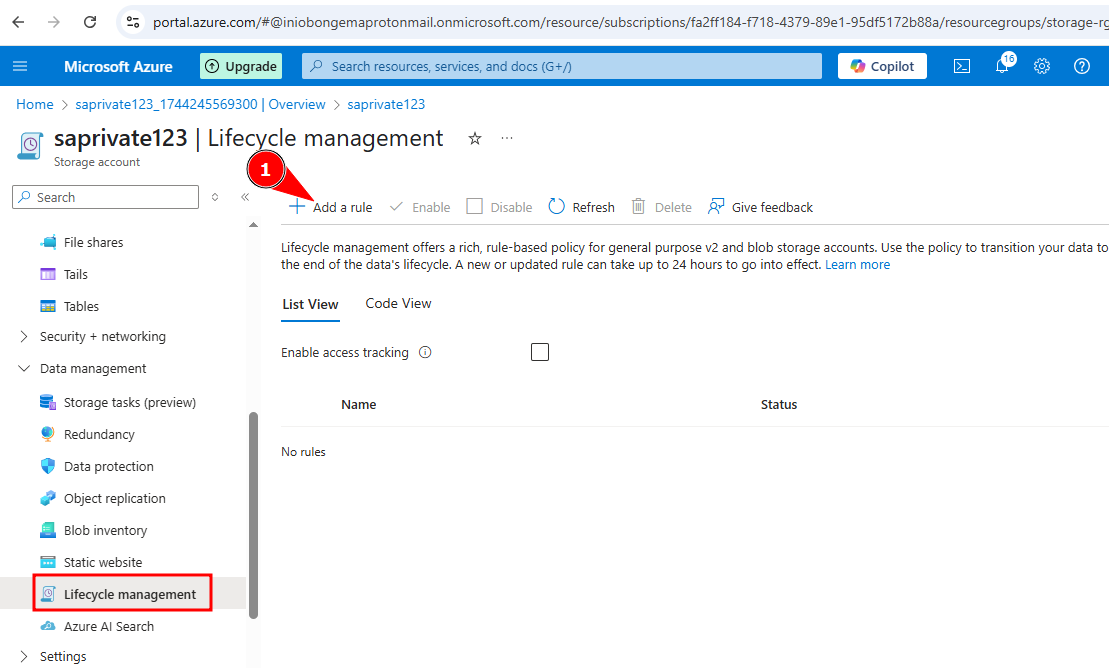
Click on 'saprivate123 overview page
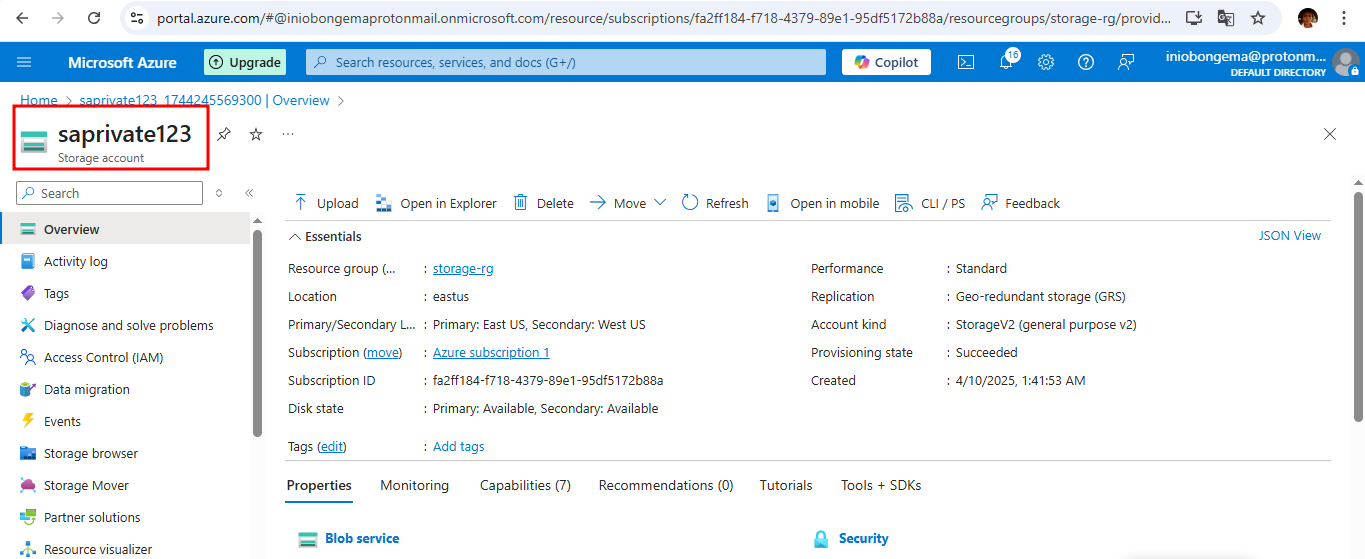
Go to data management, life cycle management
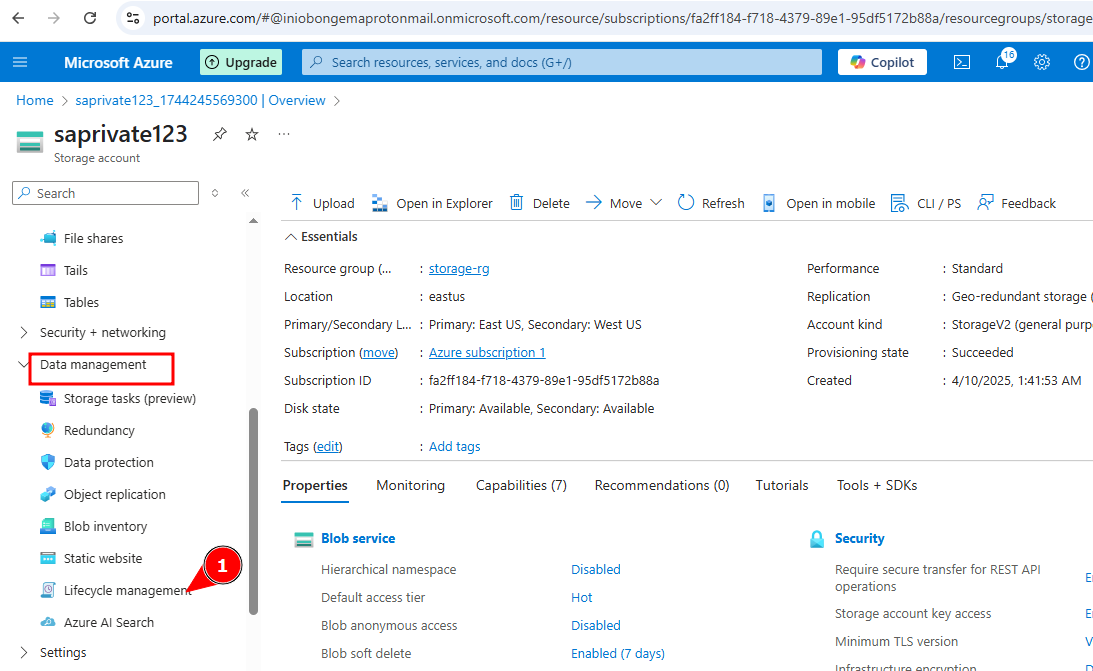
Click on 'add a rule'
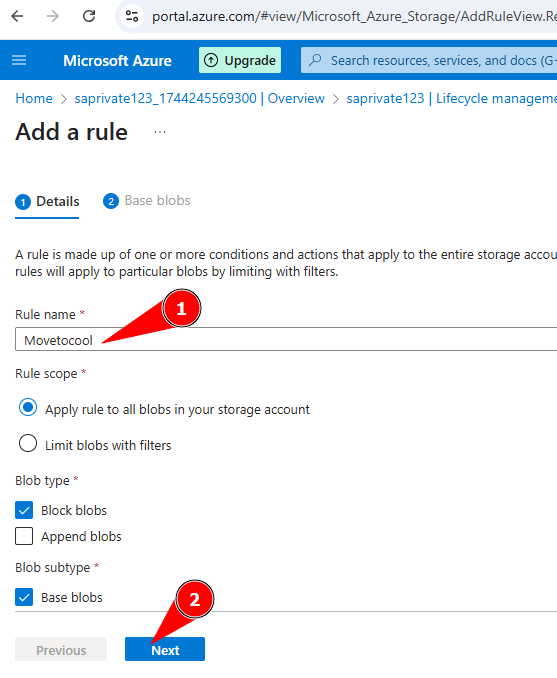
Give the rule a name 'movetocool'
-leave other features at default
-click on 'next'
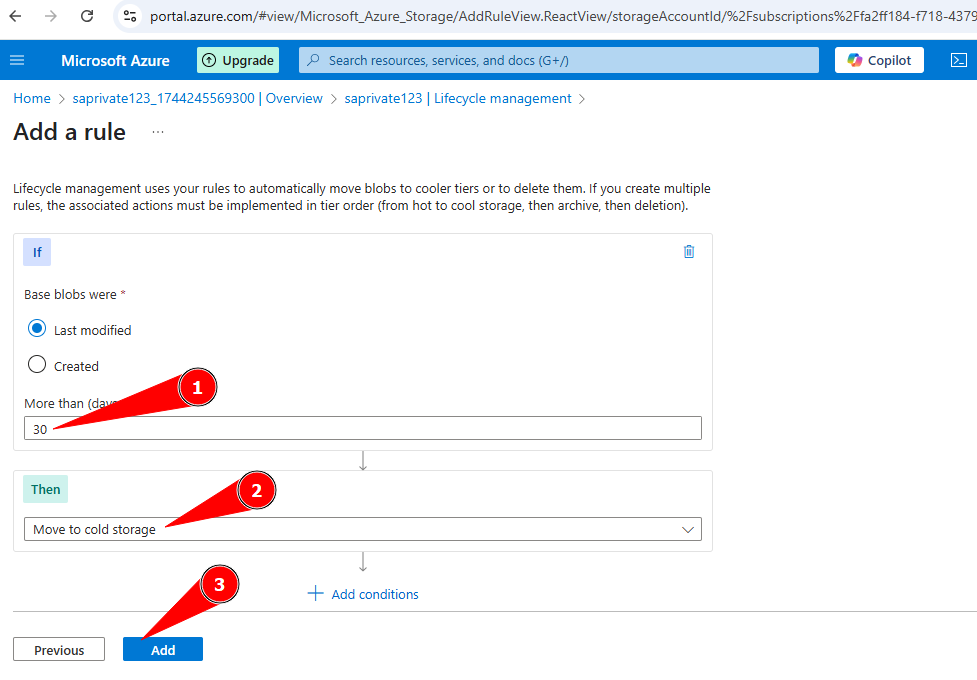
Specify the duration and what happens to it after the stipulated time
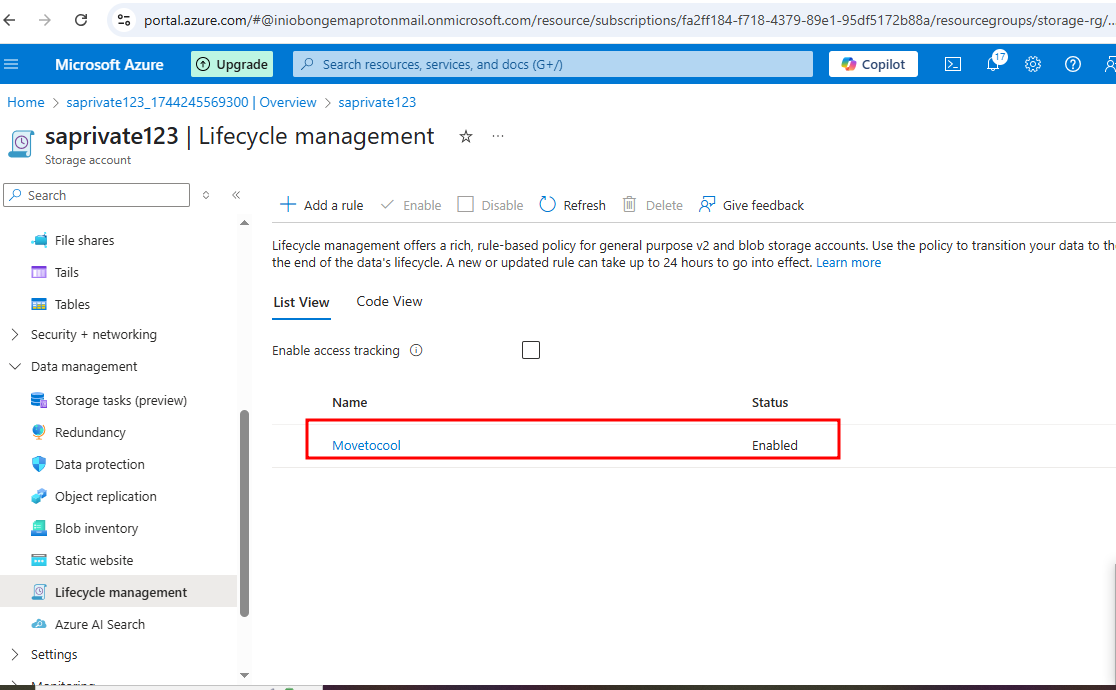
The rule has been successfully added as shown below
STEP 4
**CREATE A PUBLIC CONTAINER/OBJECT REPLICATION/CREATING BACK-UPS
Go to data storage
- select container
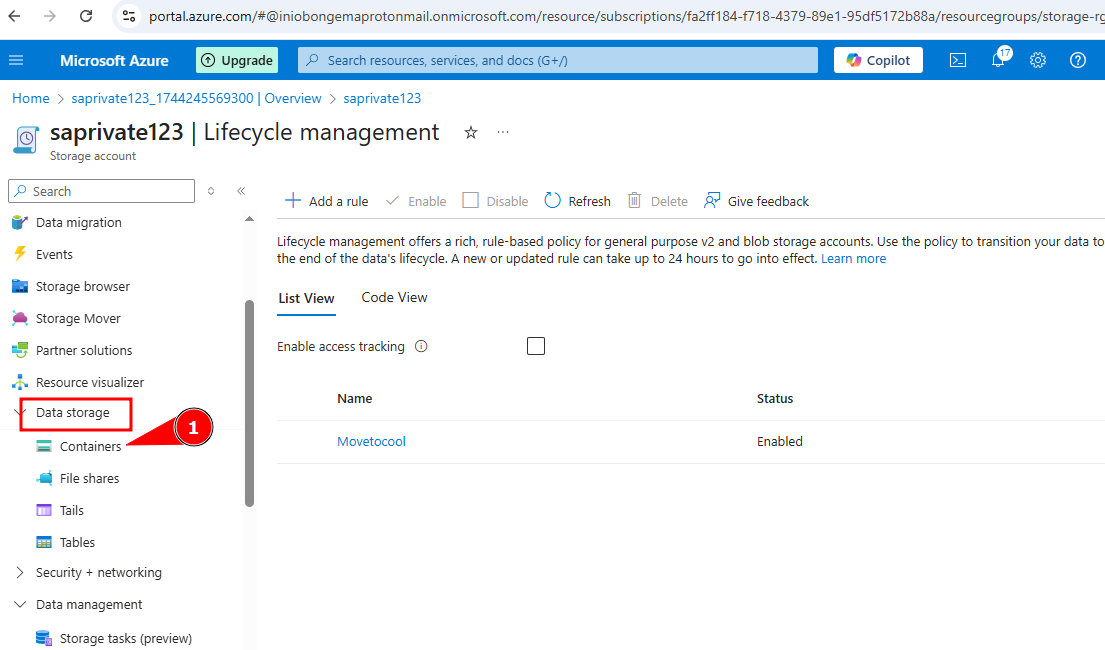
Go to container
-give it a name 'backup'
-click on 'create'
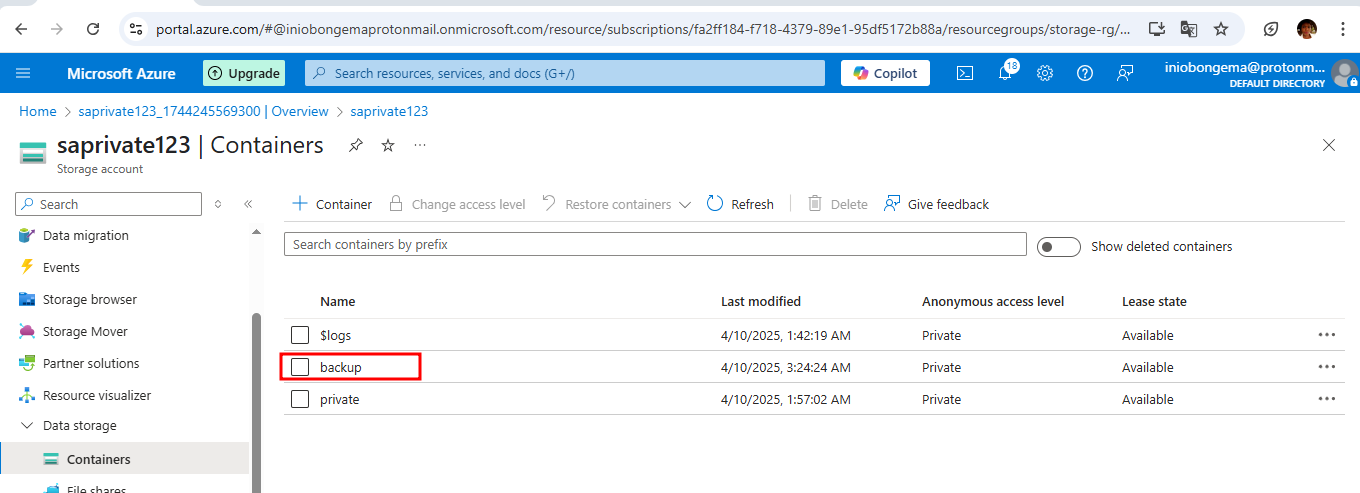
The backup container is created
Go to 'settings'
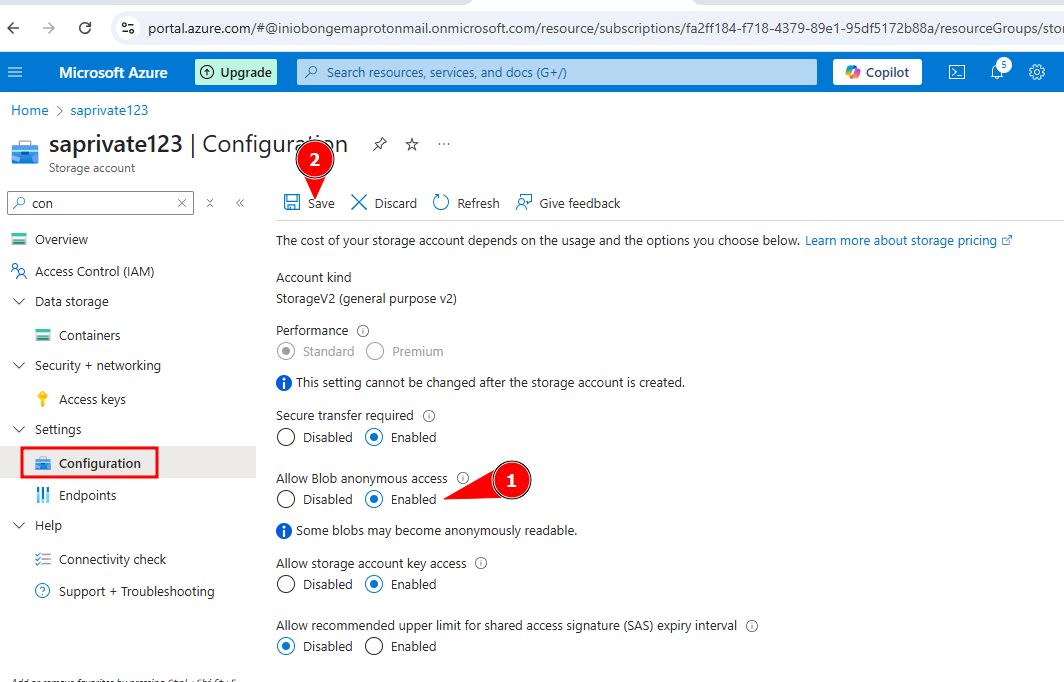
-click on configuration
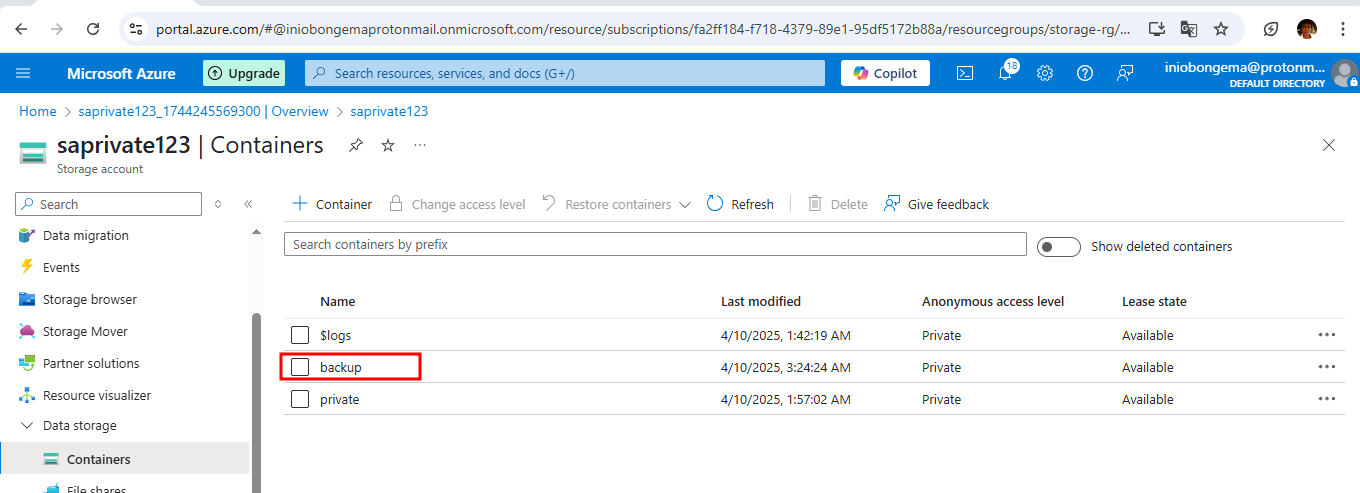
Go to configuration
-Enable 'allow blob anonymous access'
-click on save button
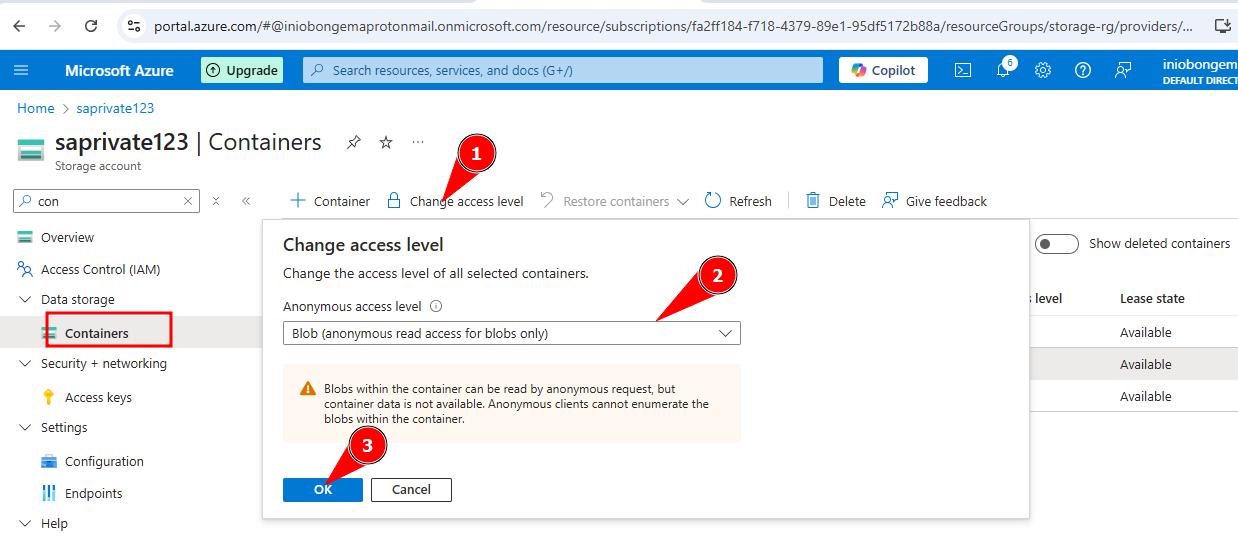
Go to 'container'
- tick the 'backup' box
- click on change access level
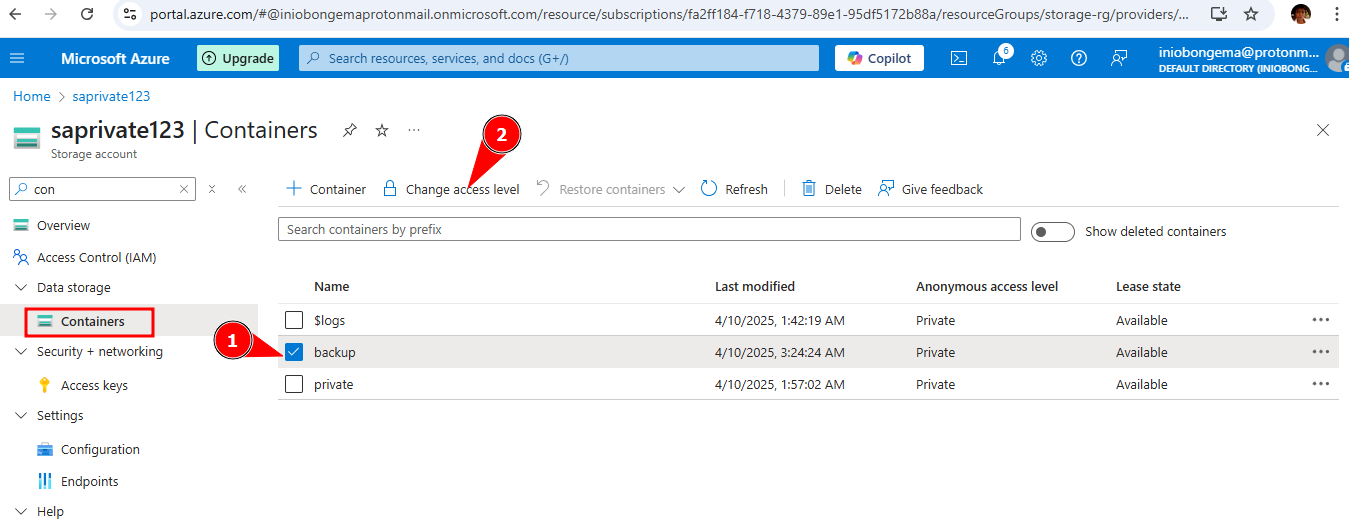
The back up is not made public, that's why the pulic access is not granted
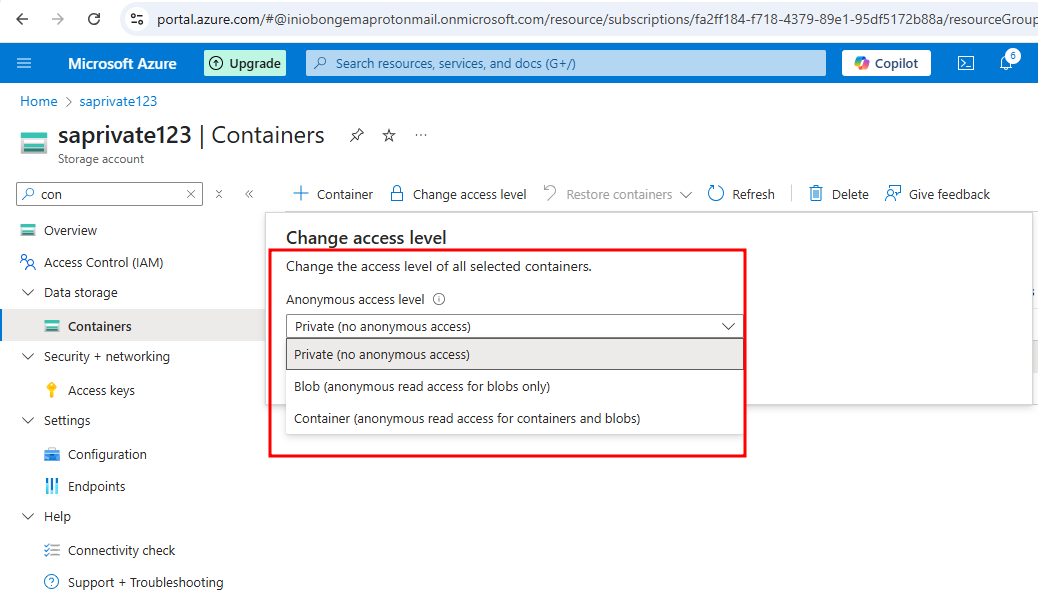
To make it public, enable 'blob anonymous access' in the settings tap, then configuration in the left pane. This action is to make the blob public. This means everyone can access the blob but not the container